
How to Export DeepSeek Chat to PDF – Step-by-Step Guide (2025)
Do you want to share your DeepSeek conversations or chats with someone? Your goal may be to teach others how to use effective prompts to train DeepSeek for a specific task. Another reason might be to share important data that you discovered through your prompting skills from DeepSeek?
Whatever the reason, you must learn how to export DeepSeek chat to PDF. Without mastering it, you wouldn’t be able to share your prompt engineering expertise with some or can’t train anyone remotely how to communicate with DeepSeek. You’ve to follow the following steps to export DeepSeek chat to PDF.
Step-by-Step Instructions for DeepSeek Web
If you’re using the DeepSeek web version on your PC, then follow the following instructions to export its chat to PD:
Step 1: Install and Bookmark DeepSeek to PDF Chrome Extension
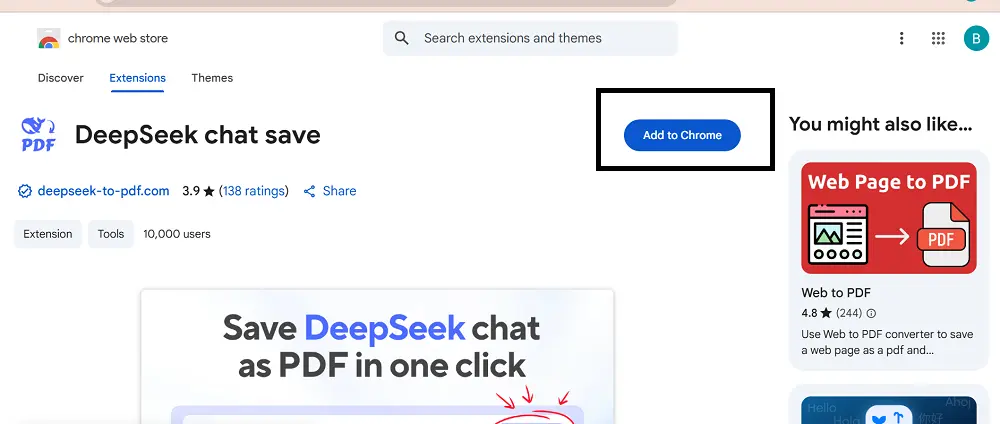
- Search for “DeepSeek to PDF Chrome Extension” on your Chrome browser and open the top research result having the title “DeepSeek to PDF – Chrome Web Store”.
- Next, click on the button “Add to Chrome”.
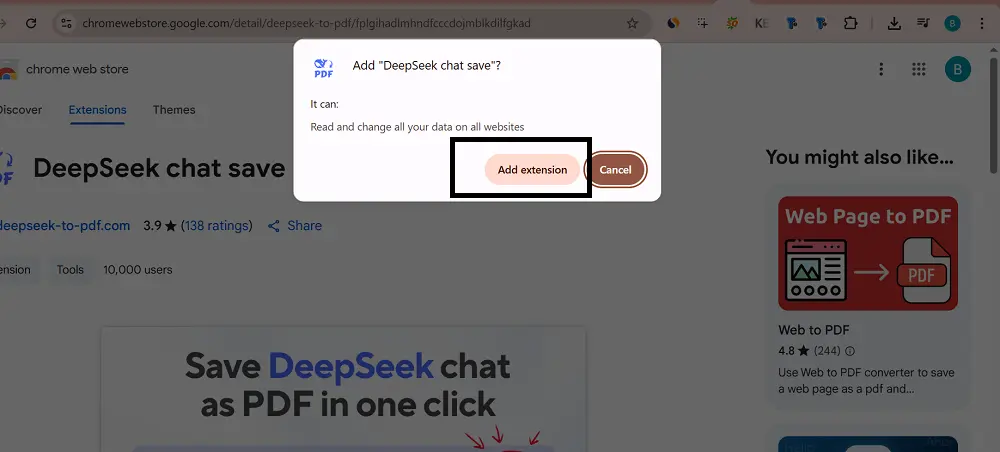
- After that, click on the “Add extension” option available on the pop-up box to allow for downloading the extension.
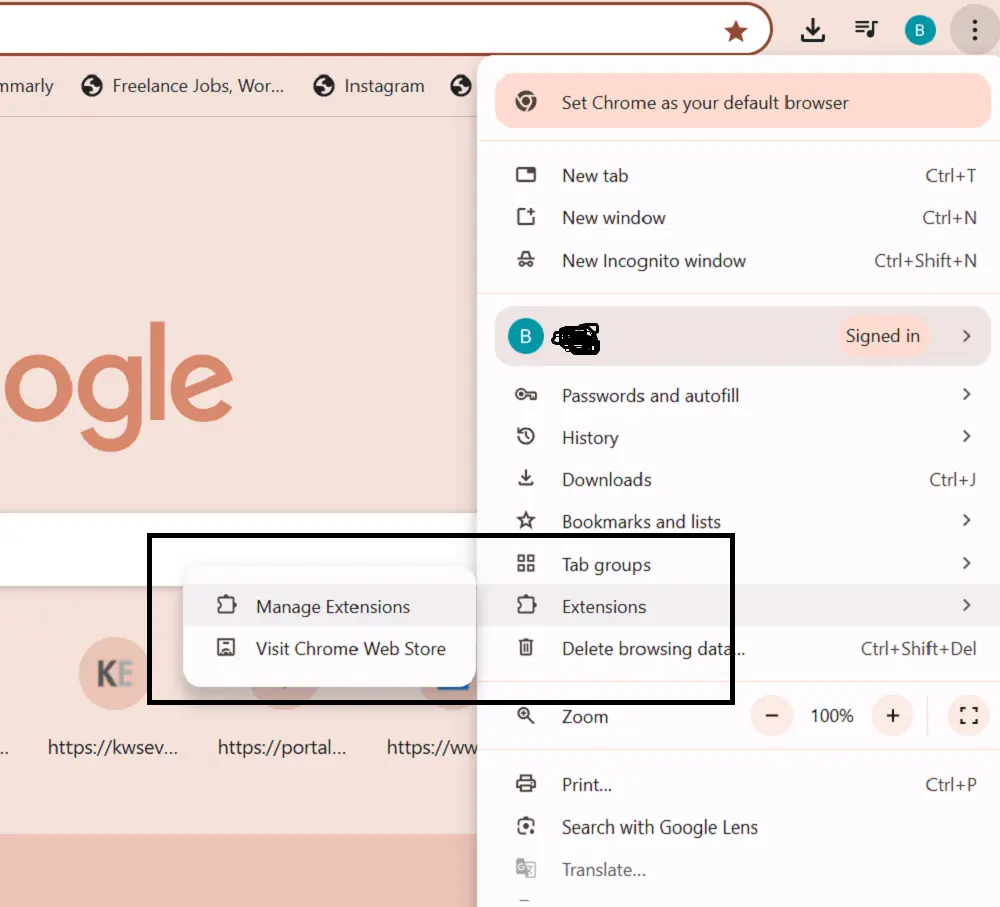
- Next, click on the three dots located at the top right corner of the browser. Hover on extensions and press manage extensions.
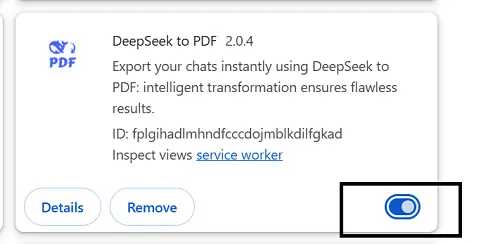
- Enable extension as shown in the screenshot.
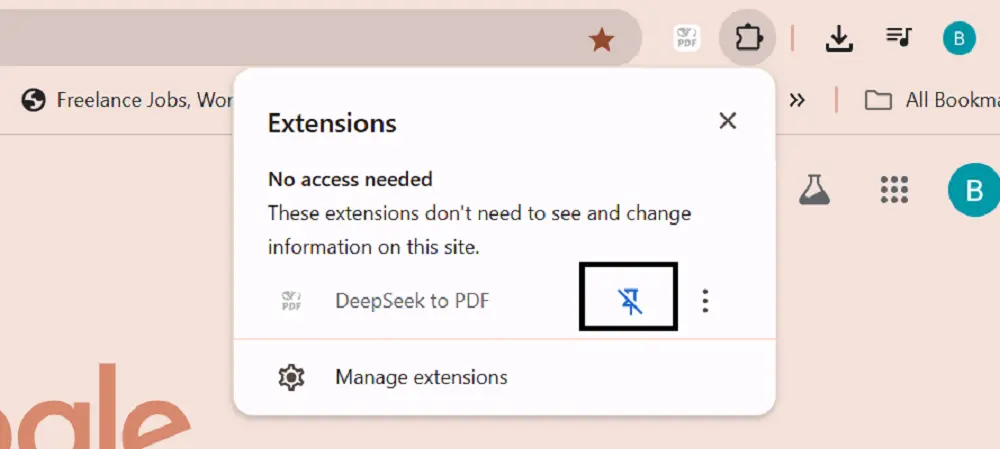
- Click on the extensions icon as shown in the image and bookmark it by clicking on the bookmark icon.
Step 2: Open DeepSeek Chat
Next, open a DeepSeek chat that you want to share and refresh the page. You’ll find a blue button “Save as PDF” at the top.
Step 3: Do PDF Settings
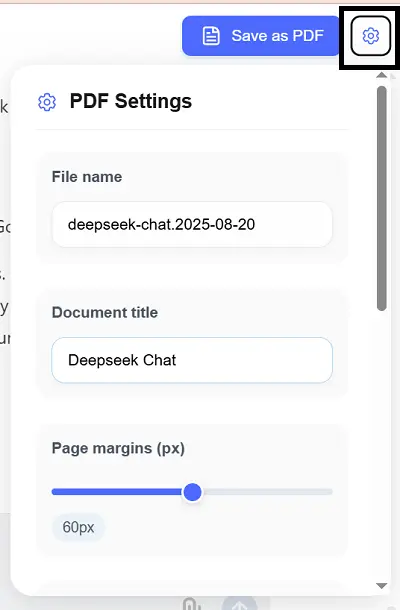
Click on the settings icons, give a name to your file, and a title to your chat. Then set the page margin according to your desire.
Step 4: Save as PDF
All is done. Click on the button and save your chat in PDF. You can share this PDF with anyone through social media or Gmail.
How to Export Chat from the DeepSeek Mobile App?
DeepSeek has not announced any method to export full chat, nor can you use the method like for the web version. However, you can manually copy the chat, paste it in MS Word or any other document, and then share it with anyone. Another method is to do a screen recording of your chat and share it with anyone.
Common Issues & Fixes
While exporting chat via the Chrome extension on a laptop or desktop, you may face some errors. I’ve enlisted some common errors and their solutions below:
Export Button Not Visible
Sometimes you would not find the “Save as PDF” button after installing the extension. This usually happens because the page didn’t load the tool correctly.
Solutions
- Refresh the DeepSeek page.
- Remove the extension from Chrome and reinstall it to make sure it integrates properly.
PDF Formatting Issues
If your exported PDF is showing a messy format like broken layouts, missing tables, or poor alignment, it’s likely a formatting issue with the tool you’re using.
Solution: In this case, you must try another Chrome extension or might use the manual copy-paste method into Google Docs/Word and export to PDF for a cleaner format.
Conclusion
After reading this guide on how to export DeepSeek chat to PDF, you can export and share your chats with anyone quickly. You can also do it manually by copying and pasting and documenting, but this process takes time. On the other hand, by using extensions, you can do it in a few clicks, and you don’t need to set the layout of the document for better understanding. Moreover, you can save the entire chat, only Deepseek messages, or select messages via a Chrome extension.